Learning basic linux commands transforms how you interact with your computer. You bypass clunky graphical interfaces and communicate directly with the core operating system. We explore the essential text inputs every student and future administrator needs to navigate open-source environments effectively.
Understanding The Terminal Interface
You open your terminal and see a simple text prompt waiting for your instructions. This blinking cursor represents absolute control over your entire machine. You type specific text strings, press enter, and the system executes your exact wishes instantly.
Beginners often feel intimidated by the sheer volume of available commands. You do not need to memorize every single input immediately to become productive. Mastering a small handful of essential tools gives you the foundation to solve almost any daily computing problem.
Navigating The File System
You navigate your hard drive using text paths rather than clicking graphical folders. The print working directory command, typed simply as pwd, tells you your exact current location. You use this command constantly to avoid getting lost in deep folder structures.
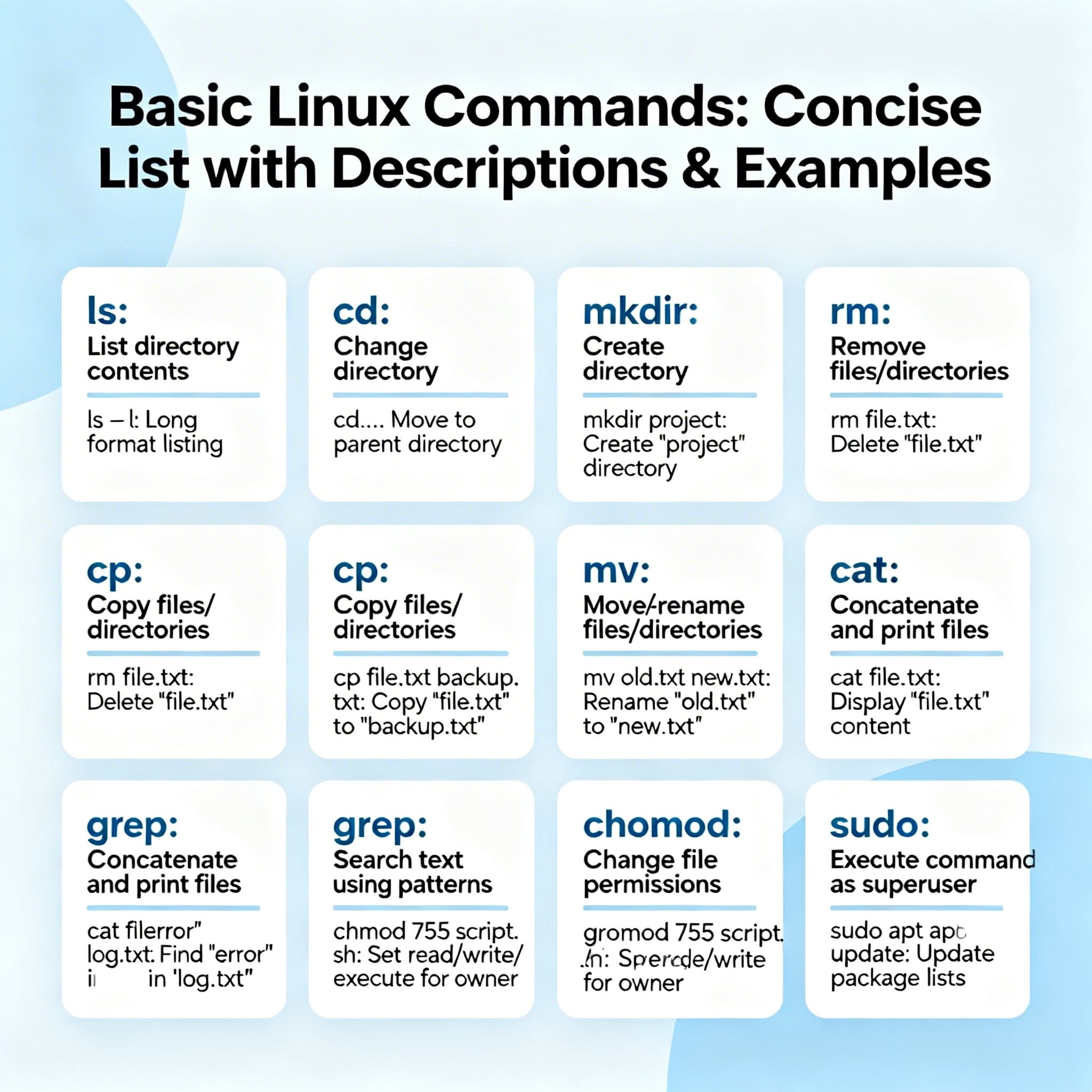
You list the contents of your current directory by typing the ls command. Adding specific flags changes how the system displays this information to you. You type ls -l to reveal detailed file permissions, ownership data, and modification dates.
Moving between folders requires the change directory command, known as cd. You type cd followed by the name of your destination folder to jump inside it. Typing cd followed by two dots moves you exactly one level up in your folder hierarchy.
Creating And Removing Directories
You build your personal folder structure using the make directory command. You type mkdir followed by your desired folder name to create a new storage space instantly. You create multiple folders at once by typing several names separated by simple spaces.
Removing empty folders requires the remove directory command, typed as rmdir. This command provides a safety net because it refuses to delete folders containing active files. You must empty the folder completely before the system allows you to destroy it.
Managing Individual Files
You create empty files quickly using the touch command. You type touch followed by a filename to generate a blank canvas for your configuration scripts. This tool also updates the modification timestamp on existing files without altering their actual contents.
You copy files from one location to another using the cp command. You specify the original file first, followed by the exact destination path. Adding the recursive flag lets you copy entire folders and all their internal contents simultaneously.
The move command, typed as mv, handles two completely different operations depending on your inputs. You use it to relocate files to new directories without leaving copies behind. You also use this exact same command to rename files by moving them into the exact same folder with a different name.
You permanently delete files using the remove command, known as rm. The operating system provides no recycling bin when you delete files through the terminal. You double-check your spelling every single time before you press enter on a remove command.
Reading File Contents
You read short text files directly in your terminal using the concatenate command, known as cat. This tool dumps the entire contents of a file onto your screen instantly. It works perfectly for checking quick configuration files or simple reading lists.
Longer documents require the less command to make reading manageable. You open a massive log file and the system displays exactly one screen of text at a time. You use your arrow keys to scroll through the document at your own pace.
Sometimes you only need to check the most recent entries in a constantly updating system log. You use the tail command to display only the final ten lines of any specified text file. You add the follow flag to watch new entries appear on your screen in real time.
Finding Information Quickly
Searching through massive text files manually wastes hours of your valuable time. You use the grep command to hunt for specific words or phrases inside any document. The system highlights exactly which lines contain your search term instantly.
You locate lost files anywhere on your hard drive using the find command. You specify a starting folder and tell the system to search by name, size, or modification date. This powerful tool scans thousands of folders in seconds to pinpoint your missing data.
Understanding System Permissions
Security relies on strictly controlling who reads, writes, or executes specific files. You change file permissions using the chmod command to protect your sensitive data. You use simple numbers to represent different levels of access for owners, groups, and guests.
You transfer file ownership completely using the chown command. You assign a specific document to another user when they take over an active project. This ensures only the correct personnel modify critical system configurations.
Monitoring System Resources
You need to know exactly how much memory and processing power your computer uses. The top command provides a live, continuously updating dashboard of your system resources. You watch specific applications fight for processor time and identify programs slowing down your machine.
Checking your available storage space requires the disk free command, typed as df. You add the human-readable flag to see your storage limits in familiar gigabytes instead of confusing byte blocks. This helps you plan storage upgrades before your hard drive fills completely.
You check your available system memory instantly using the free command. The output shows exactly how much RAM your active applications consume right now. It also displays the memory your system temporarily reserves for file caching.
Managing Running Processes
Every open application and background service runs as a distinct process with a unique identification number. You list all active processes currently attached to your terminal using the ps command. You add specific flags to view every single process running across the entire operating system.
Sometimes applications freeze completely and refuse to close through normal graphical methods. You forcefully terminate these frozen programs using the kill command followed by their process number. The operating system instantly cuts off resources to the frozen application and removes it from memory.
Getting Help In The Terminal
You never need to memorize complex command flags because the system includes a comprehensive manual. You type man followed by any command name to open its detailed instruction booklet. You read exactly what the tool does, how to format your inputs, and what optional flags exist.
Sometimes you just need a quick reminder of what a specific tool actually does. You type the whatis command to receive a single-sentence description of any utility. This quick reference saves you from scrolling through massive manual pages for simple questions.
Archiving And Compressing Data
You bundle multiple files together into a single archive using the tar command. You create these tape archives to back up entire project folders efficiently. Adding the extract flag unpackages an existing archive and restores all the original files perfectly.
You shrink the physical size of your files using the gzip compression tool. You apply this command to massive log files to save valuable hard drive space. The system decompresses the files instantly when you need to read them again later.
Networking Basics
You troubleshoot internet connection issues starting with the ping command. You send tiny data packets to a specific website and wait for a response. The terminal displays exactly how many milliseconds the data takes to travel back and forth.
You view your current network configuration using the ip command. You check your local IP address before hosting a multiplayer game or setting up a personal web server. This modern tool completely replaces older, deprecated networking commands you might find in outdated tutorials.
Downloading files directly through the command line requires the wget utility. You provide a direct web link and the system pulls the file straight to your current folder. You automate large downloads over night without leaving a heavy web browser open.
Handling Package Management
You install new software directly through the terminal using your distribution package manager. Debian-based systems utilize the apt command to search for and download thousands of free applications. You type a simple install command and the system handles all necessary dependencies automatically.
Red Hat and Fedora systems utilize the dnf package manager for the exact same purpose. You update your entire operating system by typing a single upgrade command. The terminal displays exactly what packages need updating and asks for your final confirmation.
| Command | Primary Function | Common Flag |
| ls | Lists directory contents | List detailed view |
| cd | Changes current directory | Move up one level |
| mkdir | Creates new folders | Create parent directories |
| cp | Copies files or folders | Copy recursively |
| rm | Removes files completely | Force removal |
Chaining Commands Together
You combine simple tools to perform incredibly complex operations using pipes. You type a vertical bar character to send the output of one command directly into the input of another. This fundamental concept transforms basic commands into highly specialized data processing pipelines.
You search for a specific word inside a massive file and immediately sort the results alphabetically. You pipe the output of your grep search directly into the sort command. You achieve this complex task using a single, elegant line of text.
You save command outputs permanently using output redirection symbols. You type a greater-than sign to dump the text from your terminal directly into a brand new text file. You use two greater-than signs to append new text to the very bottom of an existing document.
Creating Simple Shell Scripts
You automate repetitive daily tasks by combining multiple commands into a single executable file. You create a simple text document and list your desired commands exactly as you type them in the terminal. You give this new file execute permissions using the chmod utility we discussed earlier.
You run this script and the operating system processes every single command in sequence automatically. You back up your important folders, update your system packages, and clear your temporary files with one command execution. Writing simple bash scripts serves as your perfect introduction to practical system programming.
Scheduling Automated Tasks
You tell your computer to run specific commands at exact times using the cron scheduling daemon. You edit a simple configuration file called a crontab to establish your automated timetable. You specify the exact minute, hour, and day you want your script to execute.
You schedule your massive system backups to occur automatically at three in the morning. Your computer handles this heavy processing workload while you sleep comfortably. You arrive at your desk every morning knowing your data remains perfectly safe and updated.
Elevating User Privileges
Standard user accounts cannot modify core system files or install new applications by default. You use the sudo command to temporarily borrow administrator powers for a single action. The system asks for your personal password before executing the elevated command.
You switch user accounts entirely without logging out using the substitute user command, known as su. You enter the root environment directly when you need to perform extensive system maintenance. You type exit to drop your elevated privileges and return to your standard user account safely.
“The command line gives you the exact tools you need to fix your system when graphical interfaces fail.”
Mastering Keyboard Shortcuts
You dramatically increase your terminal typing speed by utilizing built-in keyboard shortcuts. You press the up arrow key to cycle through every command you previously typed. This simple trick saves you from retyping long, complicated strings of text.
You rely on the tab key constantly to autocomplete long file paths and folder names. You type the first few letters of a destination and press tab to let the system finish the word. The terminal beeps at you if multiple files share the exact same starting letters.
- Press Ctrl+C to cancel any currently running command instantly
- Press Ctrl+L to clear your screen of all previous text output
- Press Ctrl+A to jump your cursor to the very beginning of the line
- Press Ctrl+E to move your cursor to the absolute end of the line
- Press Ctrl+R to search your entire command history backward
Building Your Command Vocabulary
You develop muscle memory for these text inputs through constant daily practice. You force yourself to manage your personal files using the terminal instead of clicking through windows. You make mistakes, read the error messages carefully, and learn how the system responds.
You write down your most frequently used combinations in a personal notebook or digital text file. You reference this cheat sheet until the specific flags and syntax become second nature. Your confidence grows every single time you solve a technical problem using only your keyboard.
The terminal stops looking like an intimidating black box and becomes your most trusted administrative tool. You realize that graphical interfaces simply run these exact same text commands hidden in the background. You master the basic linux commands to take complete ownership of your operating system.